PDF to JPG Looks Blurry? Which Quality Setting to Pick (We Tested Each One)
On this page
If your JPG looks blurry, the PDF page was almost certainly turned into too few pixels. A PDF page has no fixed resolution: the converter draws it at whatever size you choose. Choose Medium for anything you'll read on a screen, share or upload. Choose High (or PNG at its sharpest setting) when the page has small print, you need to zoom in, or you plan to print it. In our tests, 7-point small print was fuzzy on Low, readable on Medium, and crisp on High.
Below: what each setting really means, our test results, and a quick way to pick.
Why does my PDF look blurry after converting it to JPG?
There are four usual causes:
- The resolution was too low. A PDF describes text as shapes, not pixels. When you convert a page, it's drawn at a set number of pixels per inch (DPI). At 72 DPI, a whole A4 page becomes just 595 × 841 pixels. That's fine for a thumbnail, but small text turns soft as soon as you zoom in.
- JPG compression smudged the text. JPG is a "lossy" format. It saves space by throwing away detail, and that shows most around sharp edges like letters. Mozilla's developer guide notes that blurring and coloured fringes around text are very visible in lossy images, and recommends lossless formats such as PNG for screenshots, diagrams and line art.
- The PDF itself was a low-quality scan. If the PDF is a scan or photo of a document, converting it can't add detail that was never captured. Once you go past the scan's own resolution, a higher setting only makes a bigger file of the same blur.
- Something shrank it after you converted it. If the image only looks blurry after you send or upload it, the app or website you used may have compressed it again. Try sending it as a file (document) rather than as a photo, if the app offers that.
What do Low, Medium and High actually mean?
We converted test PDFs with the ZestyPDF PDF to JPG tool at every setting. Here's what came out for one page:
| Setting | Resolution | A4 page size in pixels | Text certificate | Scan | Slide with photo and chart |
|---|---|---|---|---|---|
| Low | 72 DPI | 595 × 841 | 44 KB | 39 KB | 20 KB |
| Medium (default) | 144 DPI | 1,190 × 1,683 | 149 KB | 138 KB | 62 KB |
| High | 216 DPI | 1,785 × 2,525 | 351 KB | 373 KB | 156 KB |
Pixel sizes are for the A4 pages. The 16:9 slide came out at 720 × 405, 1,440 × 810 and 2,160 × 1,215.
Medium draws the page twice as wide and tall as Low, and High three times. Each step also uses lighter JPG compression (about 70%, 85% and 95% quality), which adds to both the sharpness and the file size. In our tests, each step up made the file about 2.4 to 3.6 times bigger. Here's what that buys you on the smallest text on the page:
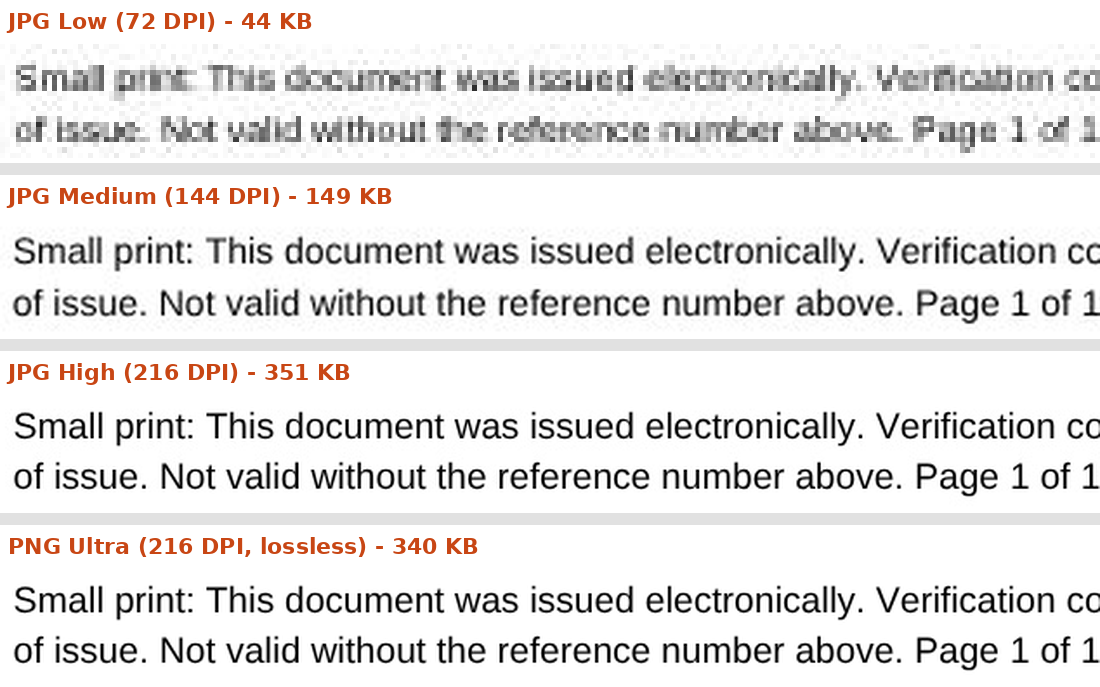
The same line of 7-point small print from each output, enlarged to the same width.
On Low, the letters are smudged and soft, and small characters take effort to read. Medium is clean enough to read comfortably. High and PNG are sharp even when enlarged.
Which setting should you pick?
- Sharing on a phone, uploading to a form, or reading on a screen: Medium. It's the tool's default, and on our certificate it kept every line readable at 149 KB.
- Small print, signatures, stamps, or anything you'll zoom into or crop: High.
- Upload forms with a strict size limit: start with Medium and drop to Low only if you have to. In our tests, Low pages came out at 20–44 KB, but check that the small print is still readable before you submit.
- Printing: use High, but know its limits. At the page's original size, High works out to 216 DPI. Epson, for example, recommends 300–360 dpi for printed images. For a text-based PDF, printing the original directly will usually look better than printing a converted image.
- Scanned documents: Medium is often enough, especially for scans made at 200 DPI or less. On our 200 DPI test scan, High was 2.7 times bigger than Medium (373 KB vs 138 KB) but only slightly sharper, because the scan had no more detail to give.
Should you convert to PNG instead?
Often, yes, for text. PNG is lossless, so letters keep perfectly clean edges. One naming trap: on our PDF to PNG tool, Ultra (3×) matches JPG High, while PNG's "High" is 2×, the same as JPG Medium.
On a text page, PNG isn't necessarily much bigger. Our certificate was 340 KB as a PNG on Ultra, slightly smaller than the same page as a High JPG (351 KB). At the lower settings, the PNG was 30–60% bigger than the JPG.
On photos and scans, PNG is much bigger. The scanned page was 1.2 MB as a PNG on Ultra, more than three times the High JPG. The slide with a photo was 488 KB as a PNG on Ultra versus 156 KB as a High JPG.
Rule of thumb: text, forms, charts and screenshots work best as PNG. Photos and scans work best as JPG.
How to convert a PDF to a sharp JPG, step by step
- Open the PDF to JPG tool in any browser, on a phone or a computer. No sign-up.
- Drop your PDF in, or tap to choose it.
- Choose Medium. Choose High if the page has small print or you'll print it.
- Tap PDF to JPG, then tap Download. A one-page PDF gives a single JPG. A multi-page PDF gives a ZIP file with one JPG per page (our 5-page document was 744 KB on Medium).
- Open the image and zoom in on the smallest text. If it's soft, run it again on High, or use PDF to PNG on Ultra instead.
About privacy: this tool runs entirely in your browser. Your PDF is never uploaded to our servers.
Can converting make a blurry PDF sharper?
No. Converting can only keep the detail that's already in the PDF. If the PDF was made from a low-resolution scan or photo, higher settings stop adding detail beyond what the scan captured. They just make bigger files. The fix is to re-scan the paper at a higher resolution, then convert the new PDF.
How we tested
We converted four test PDFs with ZestyPDF's live PDF to JPG and PDF to PNG tools on October 23, 2026:
- a one-page A4 certificate with 11-point body text, a 10-point grade table and 7-point small print;
- the same certificate as a simulated 200 DPI scan: the page rendered as an image, slightly tilted, tinted and noised, and saved inside a PDF;
- a 16:9 presentation slide with a photo, a bar chart and 8–9 point labels;
- a 5-page text document, to measure the size of a multi-page download.
Tests were run on the live tools with an automated browser script. We recorded the file size and pixel dimensions of every output, and compared the same area of each page side by side at the same enlargement. The DPI values follow from how PDFs measure pages: one PDF unit is 1/72 of an inch (Adobe), so drawing 1, 2 or 3 pixels per unit gives 72, 144 or 216 pixels per inch at the page's real size.
Written and tested by the ZestyPDF editorial team. Drafted with AI assistance; every figure and step was checked by a person before publishing.