How to Remove a Password From a PDF You Own (and Why Some Can't Be Unlocked)
On this page
If you know a PDF's password, you can remove it in seconds: upload the file to an unlock tool, enter the password, and download an unlocked copy. If the PDF opens without a password but won't let you print or copy text, it has a different kind of lock. That kind can usually be removed without any password at all. If you don't know the password a PDF needs to open, the only way in is to guess it. With modern encryption and a long, random password, that isn't possible in practice.
Below we explain the two types of PDF password, show what happened when we tested each one, and walk through the steps.
What are the two types of PDF password?
A PDF can carry two separate passwords, and they do very different jobs:
| Open password ("user password") | Permissions password ("owner password") | |
|---|---|---|
| What you notice | The PDF asks for a password before it shows anything | The PDF opens normally, but printing, copying or editing is grayed out |
| Common examples | Bank and card statements, pay stubs, tax documents sent by email | Published reports, forms, e-books, course handouts |
| Is the content encrypted? | Yes. Without the password the file is unreadable | Yes, but it can be decrypted without the owner password |
| Can it be removed? | Only if you know the password | Usually yes, without knowing the password |
The open password is the real lock. The permissions password is closer to a "please don't" sign. In the words of the qpdf documentation, the restrictions are "solely enforced by the software" that reads the file.
What happened when we tested each kind?
We locked a 5-page document in three different ways, kept one copy unlocked, and ran each through the live service behind ZestyPDF's Unlock PDF tool:
| Test file | Password entered | Result | Total time (incl. upload) |
|---|---|---|---|
| Permissions lock only (printing and copying blocked), AES-256 | None | ✅ Unlocked, all 5 pages, printable and copyable | 2.4 s |
| Same file | Something typed by mistake | ✅ Unlocked anyway | 2.2 s |
| Open password, AES-256 (the strongest standard PDF encryption) | None | ❌ "This PDF needs its open password. Enter it and try again." | 1.5 s |
| Same file | A wrong guess | ❌ "Incorrect password. Please try again with the correct password." | 1.7 s |
| Same file | The correct password | ✅ Unlocked, all 5 pages | 2.0 s |
| Open password, older 128-bit RC4 encryption | The correct password | ✅ Unlocked, all 5 pages | 2.3 s |
| A PDF with no protection at all | None | ✅ Returned as is, with the note "This PDF isn't password-protected." | 2.0 s |
Two takeaways:
- Permissions locks come off without a password. If your PDF opens but won't print, you don't need to hunt for a password, and typing something by mistake doesn't stop it working.
- Open passwords are only removed when you supply them. The tool doesn't guess. It tells you whether the password is missing or wrong, rather than handing you a broken file.
How do you remove a password from a PDF?
- Open Unlock PDF in your browser. It works on any computer or phone.
- Upload the locked PDF.
- If the PDF asks for a password when you open it, type that password in. If it opens fine but won't print or copy, leave the password box empty.
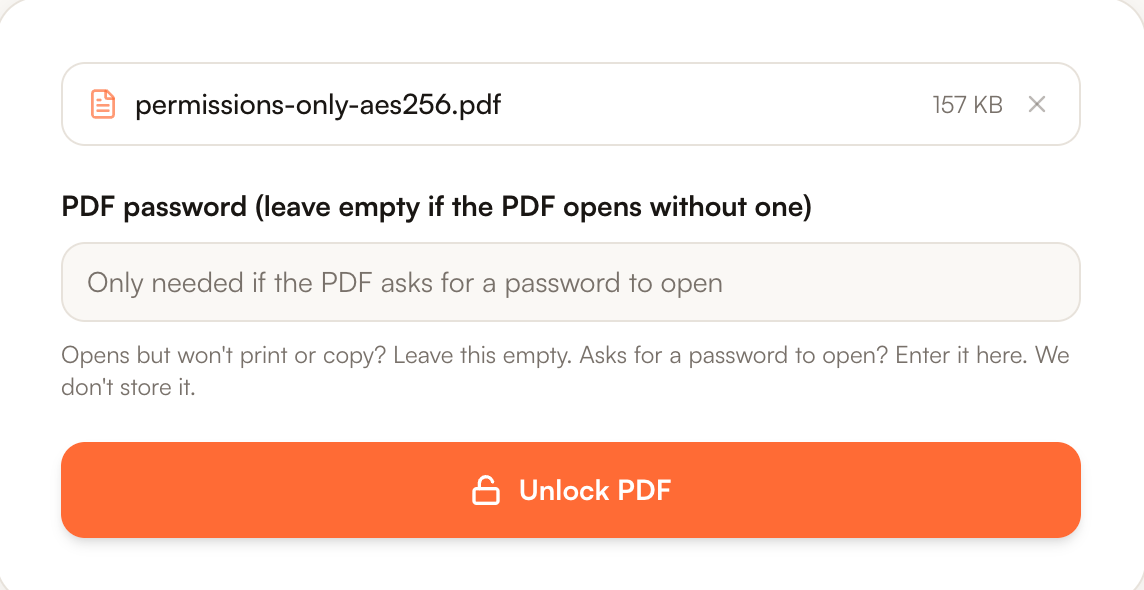
The password field is optional: leave it empty for PDFs that open but won't print or copy.
- Click Unlock PDF.
- Download the unlocked copy. Open it once to check that it opens without a prompt and that printing works.
Keep your original file. The unlocked copy is a new file with no protection, so treat it carefully, especially if it's a bank statement or pay stub.
Can you do it without uploading the file?
Yes, if you have one of these on your computer:
- Mac: open the PDF in Preview and enter its password. Choose File → Edit Permissions, uncheck Require Password To Open Document, and click Apply. Preview may ask for the owner password to change permissions. Apple's guide is linked below.
- Adobe Acrobat (paid): Acrobat can remove the password from a file you've opened. Adobe's own guide, linked below, gives the current steps.
These options keep the file on your device. An online tool is quicker on a phone, or when you don't have the owner password for a permissions lock.
Can you unlock a PDF if you've forgotten the password?
Usually not. Password-recovery software works by guessing, so it can find short or predictable passwords, but a long, random password on AES-256 encryption is out of reach. Be wary of websites that promise to "crack" any PDF: you'd be handing a sensitive file to a stranger. Your realistic options are:
- Ask the sender. Banks and payroll providers often use a predictable password, such as part of your date of birth or account number, and their emails or help pages say what it is.
- Download it again. Many portals let you download an unprotected copy, or a fresh copy with a password you set yourself.
- Search your email for the message that came with the original. The password is often in it, or in a separate message.
Is it legal to remove a password from a PDF?
Removing a password from your own documents, such as your bank statements, pay stubs or tax forms, is ordinary and fine. It's also fine for documents you have permission to use. Removing protection to copy or share someone else's copyrighted work, or to get into a file you weren't meant to see, is a different matter. It may break copyright law or the terms you received the file under. This isn't legal advice: if you're unsure, ask whoever sent the file.
Is it safe to upload a password-protected PDF?
It depends on the tool. Here is what happens with ours, so you can judge:
- The file and password travel over an encrypted HTTPS connection.
- The unlocking runs on our server with qpdf, an open-source PDF tool.
- The uploaded file and the unlocked copy are deleted from the server when the job finishes, and the password isn't stored.
For very sensitive documents, the offline methods above keep everything on your own computer. That's a perfectly good choice.
How we tested
On October 21, 2026 we took a 5-page text PDF and used qpdf to make three locked versions:
- a permissions-only lock (AES-256, printing and copying disabled, no open password);
- an AES-256 open password;
- a 128-bit RC4 open password, the older standard.
On October 22, 2026 we sent each one, plus an unprotected copy, through ZestyPDF's live unlock service with no password, a wrong password and the correct password. We checked every unlocked file with qpdf --show-encryption (all reported "File is not encrypted") and confirmed the page count was unchanged. We also ran the permissions-only file through the Unlock PDF page itself in Chrome, with the password box left empty, and it unlocked. The error messages in the table are the exact wording the service returns.
Written and tested by the ZestyPDF editorial team. Drafted with AI assistance; every test, figure and step was run and checked by a person before publishing.
Sources
Related guides
- How to Compress a PDF for Email (We Tested Every Setting)October 21, 2026